
To check in, your phone needs to share its location. Follow the steps for your phone.
The amber box shows where to tap in each picture.
1
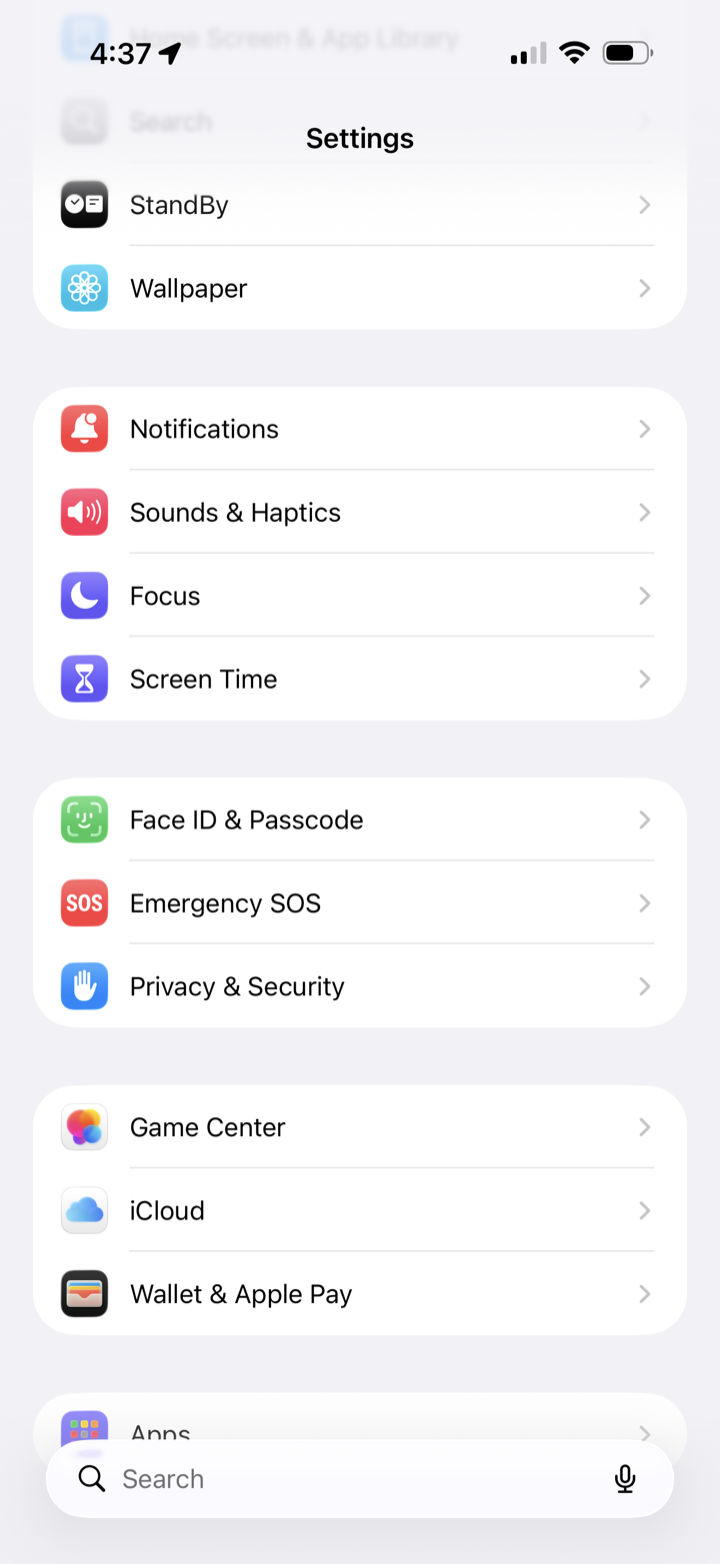
Open the Settings app.
2
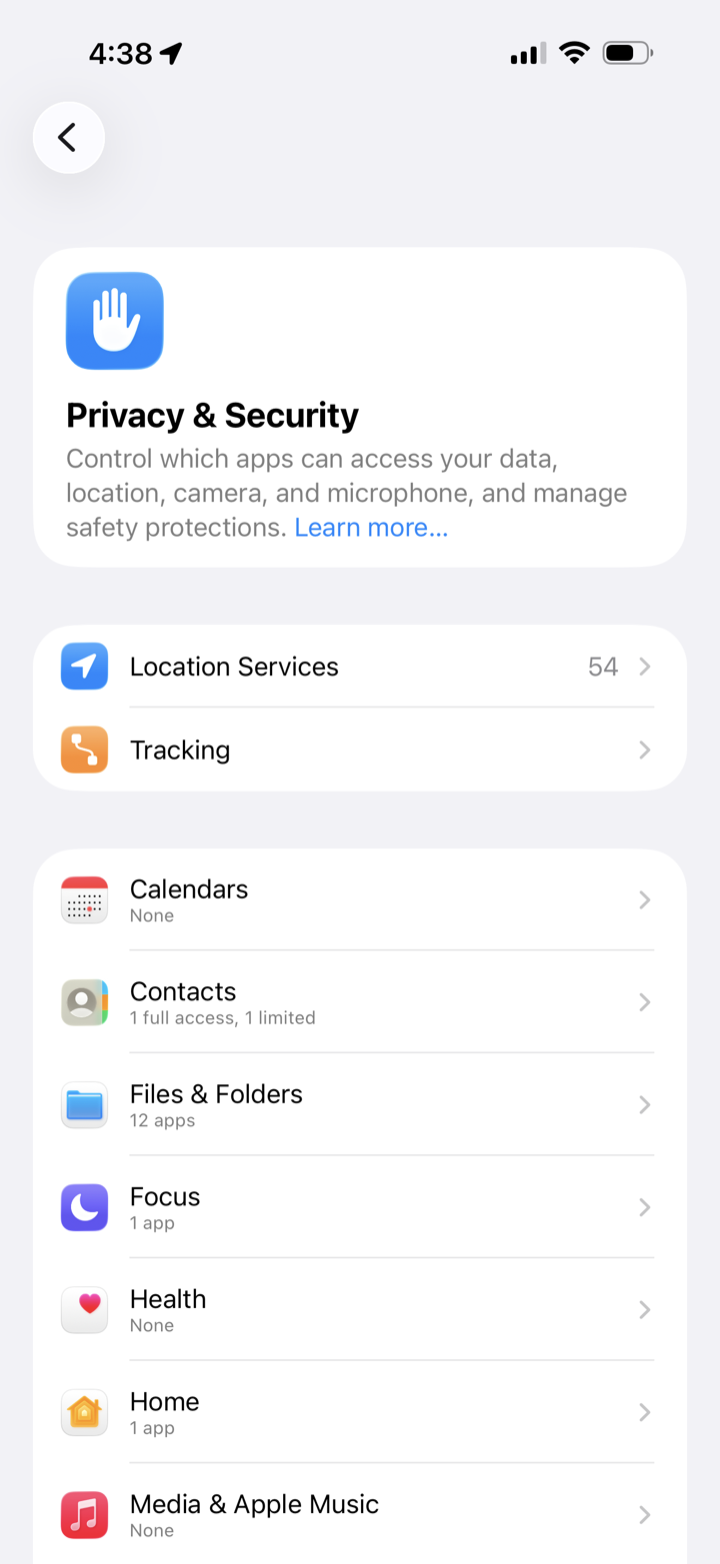
Tap Privacy & Security.
3
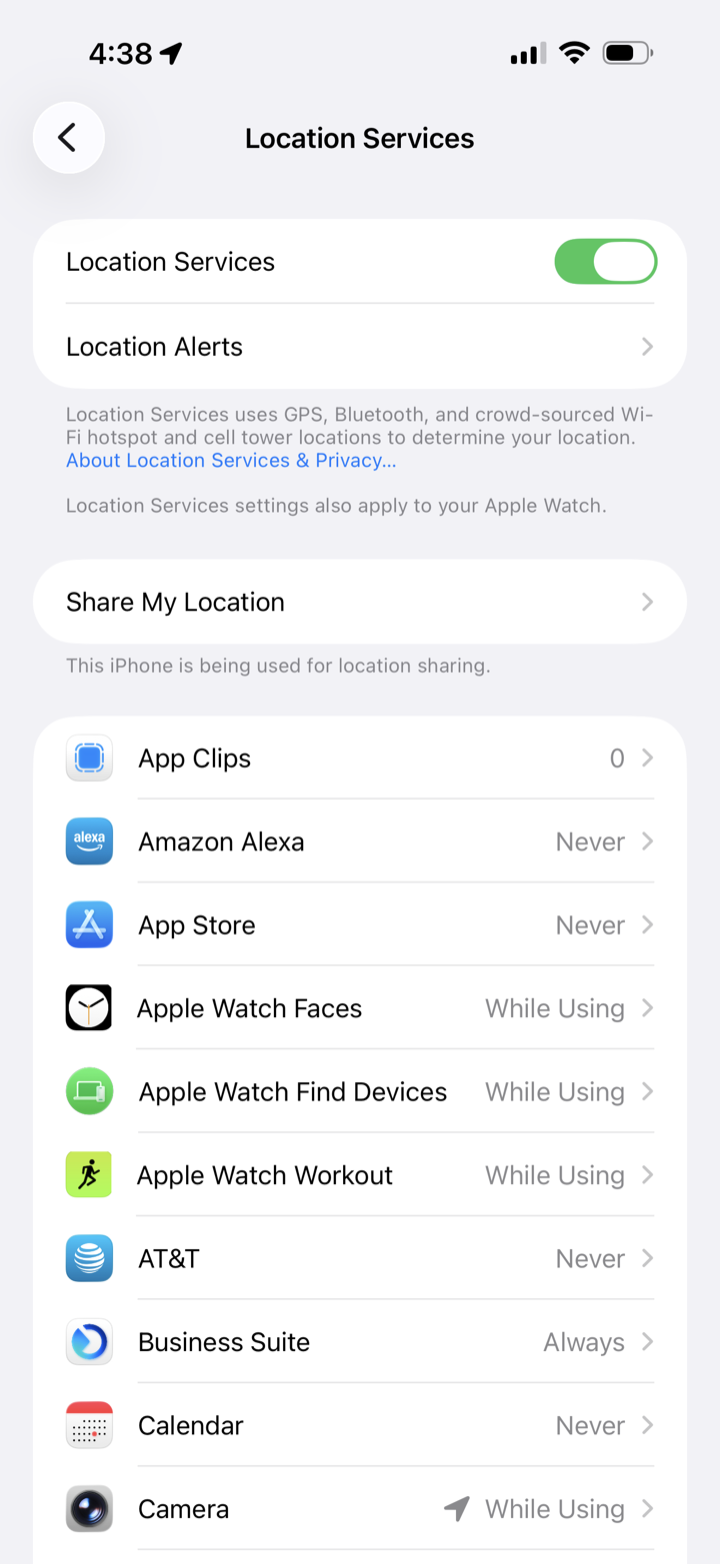
Tap Location Services and turn it on.
4
Scroll down to Safari Websites.
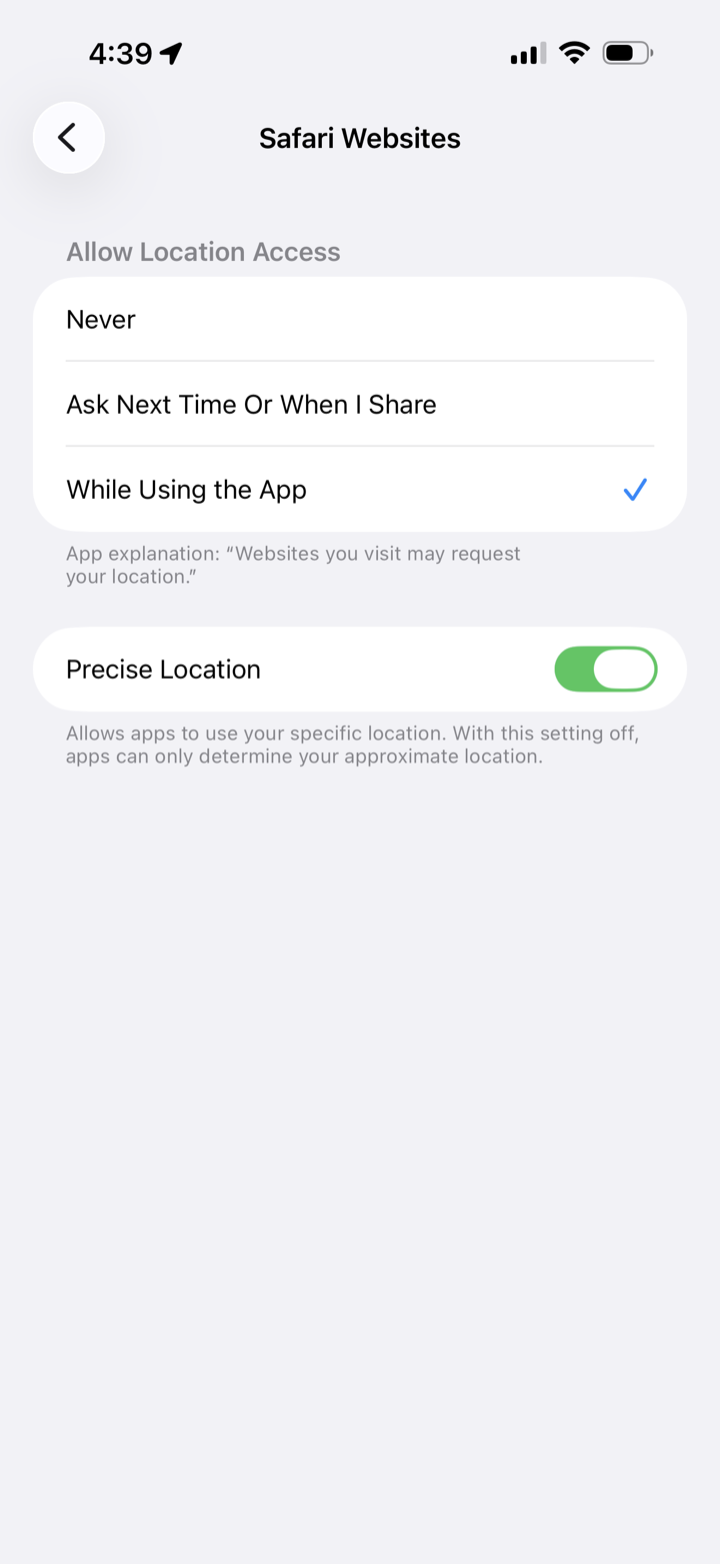
Choose While Using the App, then turn on Precise Location.
1
Open the Settings app.
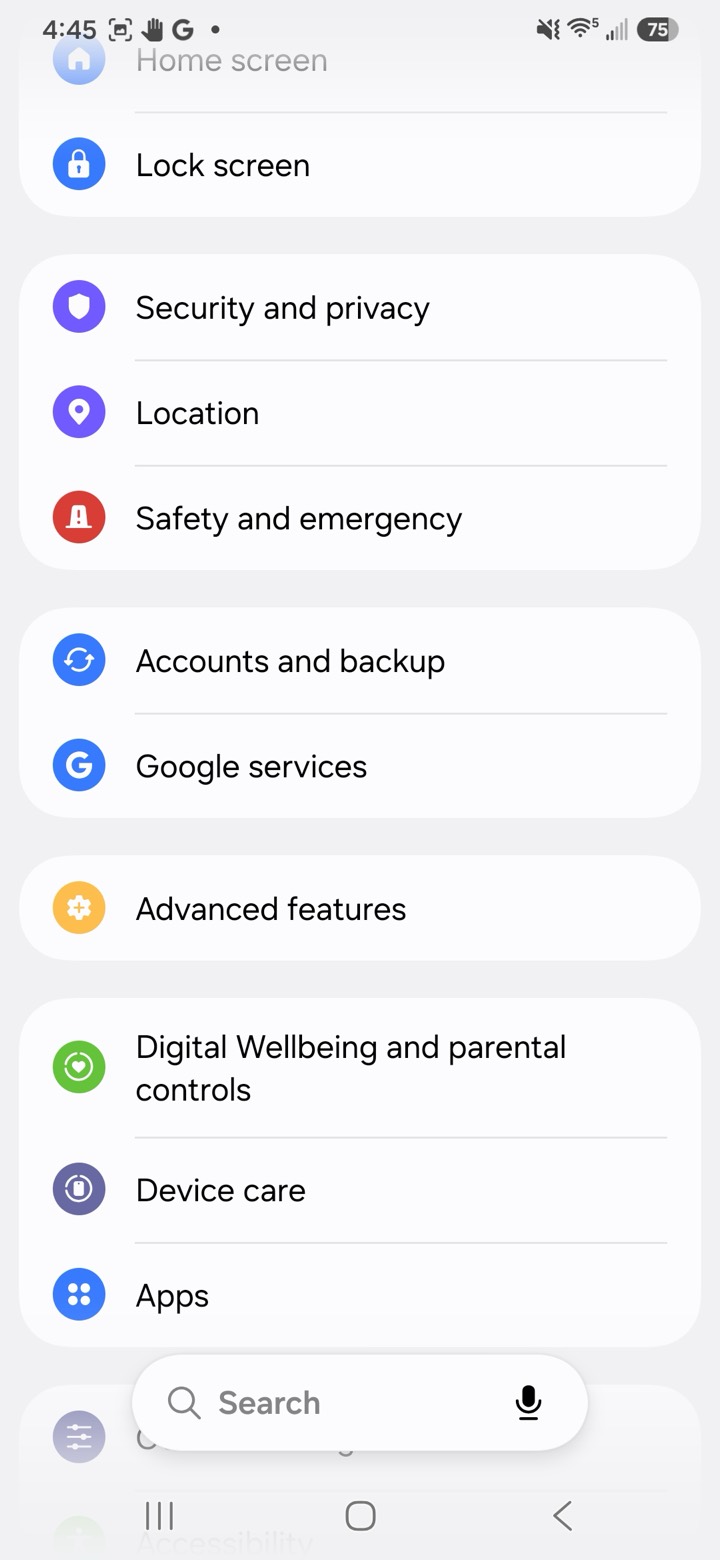
2
Tap Location and switch it on.
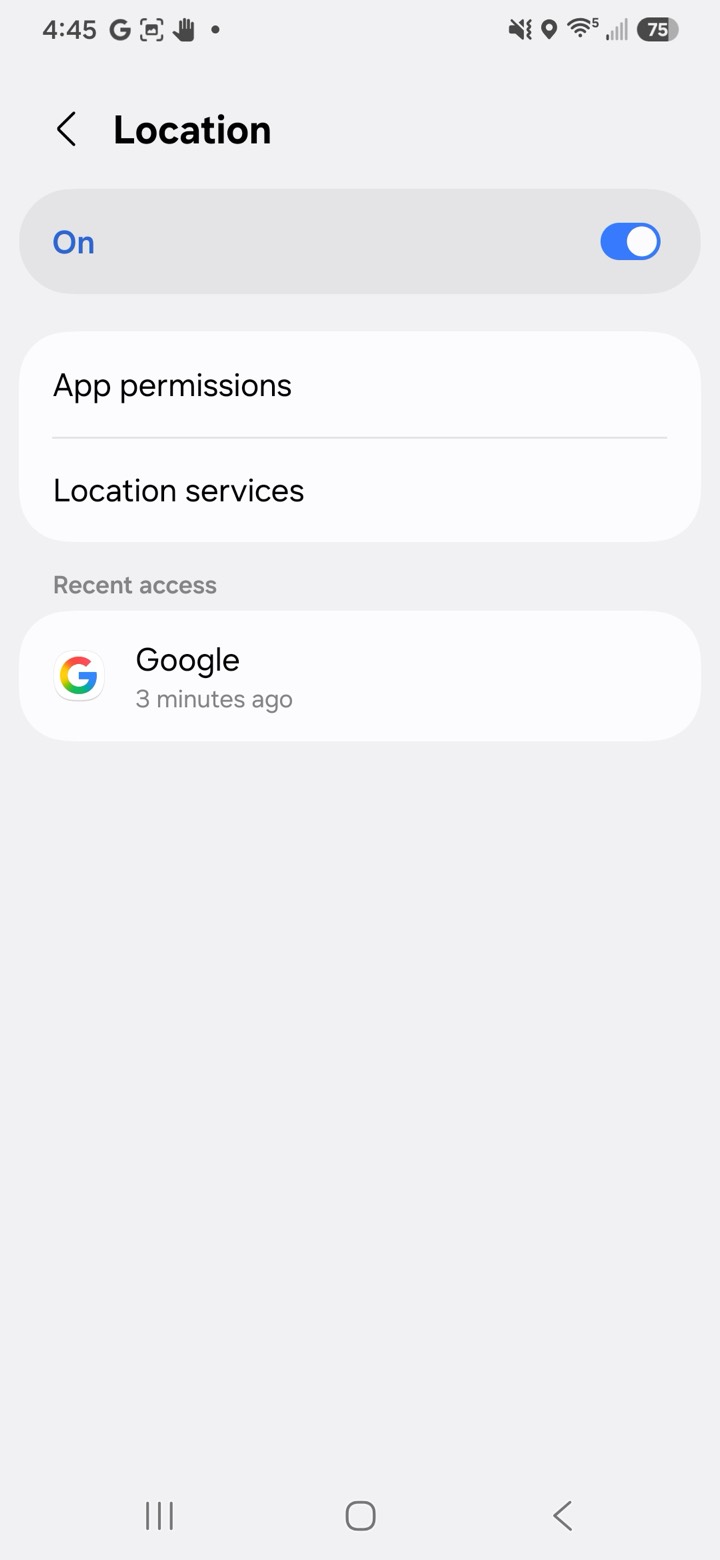
3
Tap App permissions.
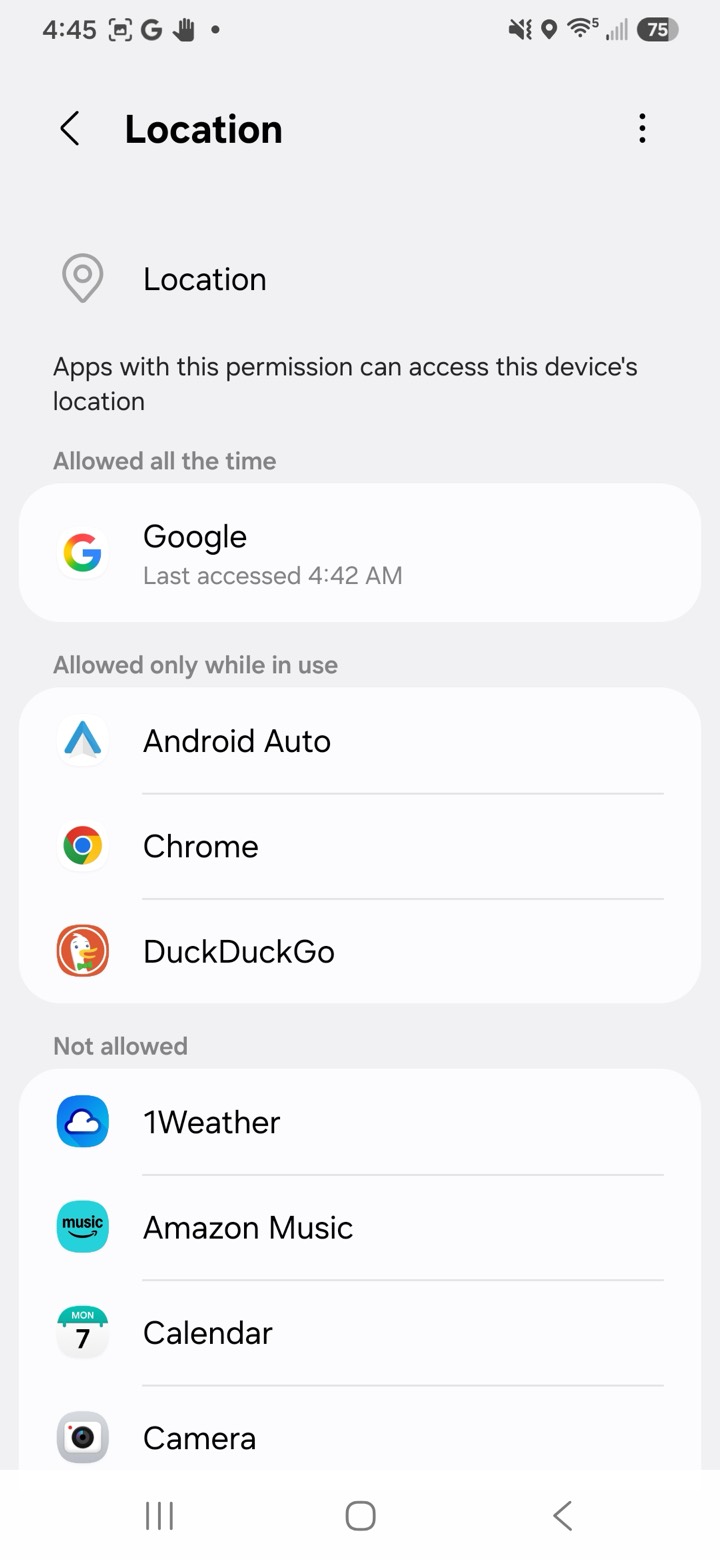
4
Select Chrome.
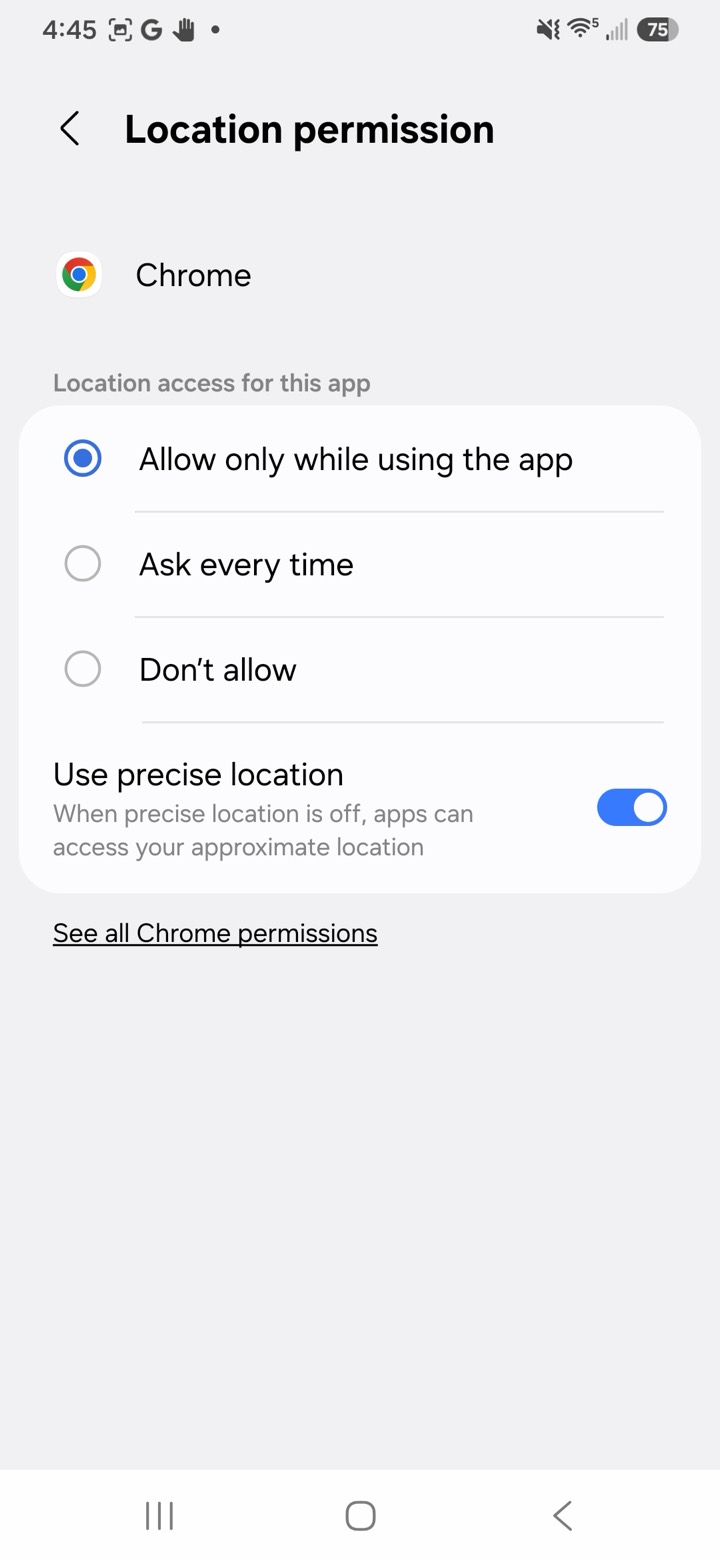
Choose Allow only while using the app, then turn on Use precise location.
You're all set
Go back to the roster and tap Allow when your phone asks for your location.
Back to the rosterIf you already blocked location for this site, tap the icon to the left of the web address, find Location, change it to Allow, then reload.
Still not working? Ask hall staff or call the office at 217-352-1741.